Major Microsoft Cloud Service Outage Disrupts 365, Teams, and Azure Users Worldwide


email-icon-with-sad-face-free-vector Major Microsoft Cloud Service Outage Disrupts 365, Teams, and Azure Users Worldwide

Major Service Outage Disrupts M365 Users

On January 21–22, 2026, Microsoft experienced a widespread cloud services disruption that affected multiple core offerings, including Microsoft 365 (Office 365), Microsoft Teams, and to a lesser extent Azure cloud services.(Microsoft Service Health)

What Happened?

Users across multiple regions—including the United States and Canada—reported significant problems accessing Microsoft 365 services, such as Teams, Outlook, and account sign-ins. Real-time outage monitoring services tracked thousands of reports of degraded or unavailable service conditions throughout the day. (IsDown)

According to Tom’s Guide, more than 1,000 reports of Microsoft 365 issues and 500+ reports for Teams came in early in the outage, which began around 9:00 a.m. Pacific Time on January 21. Microsoft acknowledged the incident on its official status feed and via social media, citing a possible third-party networking issue as an initial cause and stating that teams were investigating and assessing the broader impact. (Tom’s Guide)

While the core Microsoft 365 services saw the majority of reported problems, some Azure customers also reported disruptions, particularly to services like virtual machines, dashboards, and APIs—though third-party outage checkers indicated no confirmed broad Azure outage at this moment. (IsDown)

Services Impacted

  • Microsoft 365/Office 365 – Major impact with degraded performance and partial downtime for apps including Teams and Outlook. (IsDown)
  • Microsoft Teams – Users reported connection and loading failures. (Tom’s Guide)
  • Azure Cloud Services – Some user reports indicated issues, but official status pages currently show Azure as generally operational. (IsDown)

Third-party monitors also showed ongoing issues for Microsoft 365 into January 22, with hundreds of user reports indicating degraded performance or inability to access cloud-based applications. (IsDown)

Root Cause & Microsoft’s Response

Microsoft’s initial messaging pointed to a third-party networking issue affecting both Microsoft 365 and adjacent cloud services. While the company has not publicly confirmed a final root cause, the ongoing investigation suggests network infrastructure or inter-service dependency failures may have triggered cascading effects across cloud systems. (Tom’s Guide)

Microsoft encouraged affected users to monitor the Microsoft 365 Admin Center or the official status page for continuous updates and detailed incident notifications. (Tom’s Guide)

What Users Can Do

  • Check official status via your Microsoft 365 Admin Center or Azure Service Health dashboard. (Microsoft Azure)
  • Monitor outage maps and real-time reports from independent aggregators to validate local impact. (IsDown)
  • Subscribe to alerts for your services in Azure Service Health to receive incident notifications and mitigation guidance. (Microsoft Azure)

Industry Impact

Such large-scale outages highlight the reliance of enterprises on cloud providers like Microsoft for critical business operations. Even short disruptions can translate into productivity losses across sectors that depend on cloud-hosted collaboration tools and infrastructure.

As of the latest available data, most services appear to be in the process of recovery, but Microsoft continues to provide updates as the situation evolves.


**UPDATE**

Microsoft has been working on the issue with some progress, but issues still remain. See below for the latest updates.

Jan 23, 2026, 8:36 AM PST

While we’re observing some recovery after rolling back the impacting change, we’re exploring options to expedite the resolution.
How to Identify Malicious Emails and Protect Yourself Online: 9 Proven Strategies Every Business Owner Must Know


How to identify malicious emails and protect yourself online

In today’s digital-first business environment, email is both a powerful communication tool and a major security risk. Cybercriminals increasingly rely on deceptive messages to trick professionals into revealing sensitive data, transferring money, or installing malware. Understanding how to identify malicious emails and protect yourself online is no longer optional—it’s an essential business skill.


Understanding Malicious Emails

Malicious emails are designed to deceive recipients into taking harmful actions. These messages often look legitimate, using familiar logos, professional language, and trusted names.

What Makes an Email Malicious?

A malicious email typically aims to:

  • Steal login credentials
  • Trick you into transferring funds
  • Install harmful software
  • Gain unauthorized access to systems

They often exploit human psychology—fear, urgency, curiosity, or authority.

Why Business Professionals Are Targeted

Business owners manage finances, contracts, and sensitive data. Attackers know that professionals are busy and may act quickly without double-checking details, making them prime targets.


Common Types of Malicious Emails

Phishing Emails

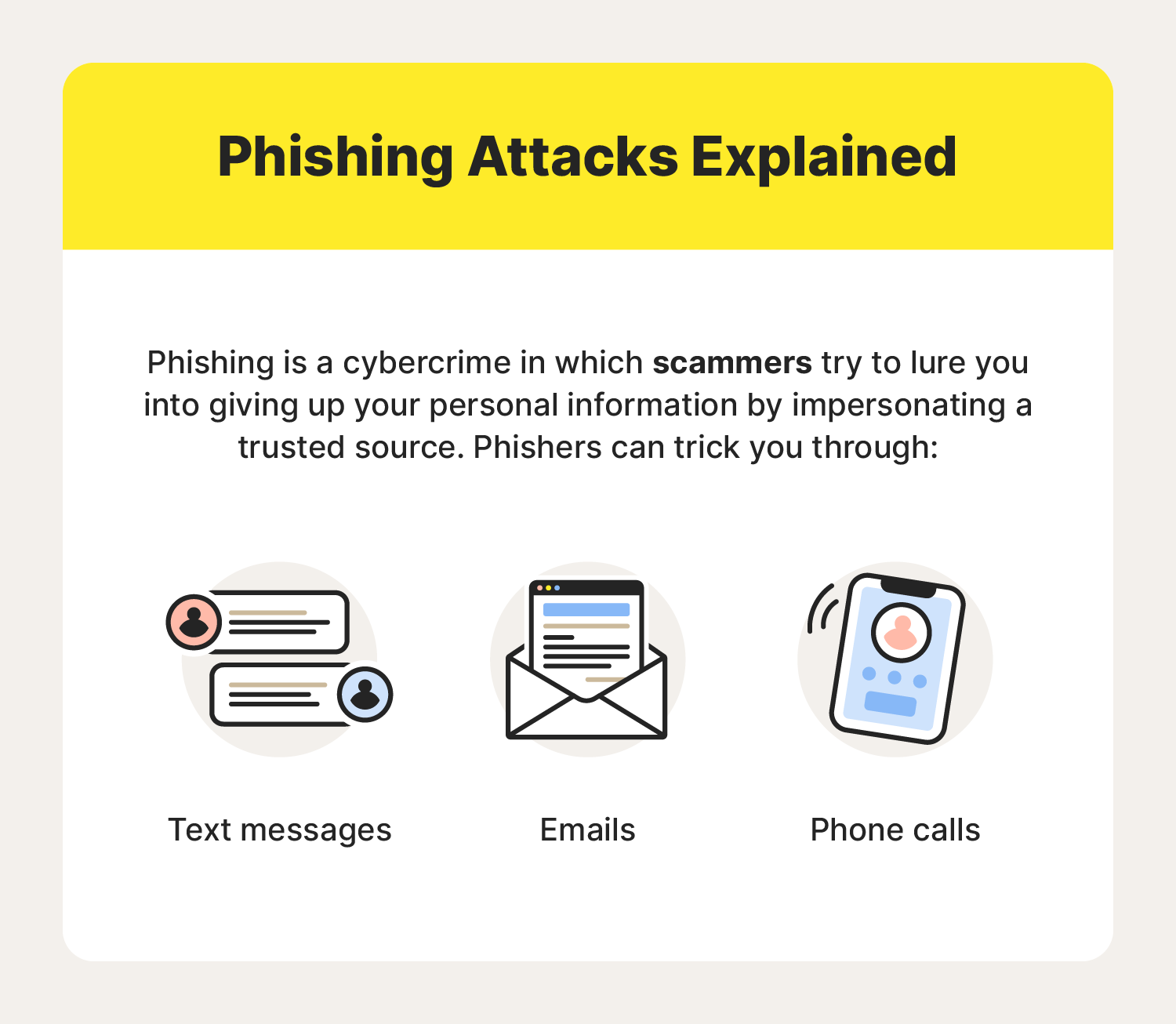
what-is-phishing-1 How to Identify Malicious Emails and Protect Yourself Online: 9 Proven Strategies Every Business Owner Must Know

Phishing emails impersonate trusted organizations such as banks, vendors, or cloud service providers. They often ask you to “verify” or “reset” account information via a fake link.

Spear Phishing and Whaling

  • Spear phishing targets a specific individual using personalized information.
  • Whaling targets executives or business owners with high authority, often involving fake invoices or legal notices.

Malware and Attachment-Based Attacks

Attachments disguised as invoices, resumes, or reports may contain malware that installs silently once opened.


Key Warning Signs of Malicious Emails

Suspicious Sender Information

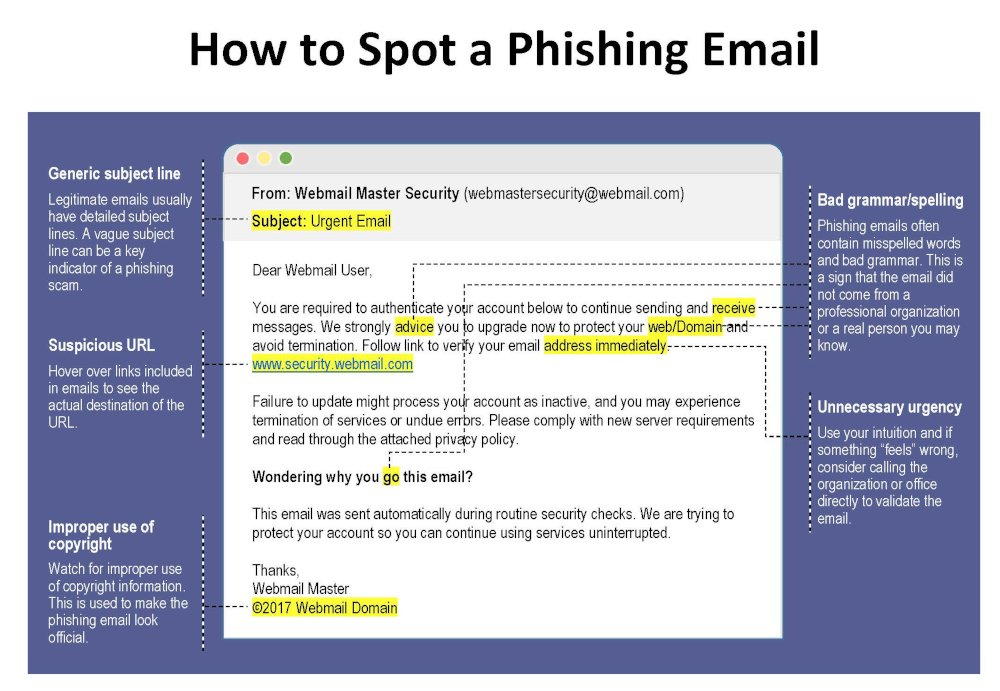
Look closely at the sender’s email address. Attackers often use domains that closely resemble legitimate ones (for example, @paypa1.com instead of @paypal.com).

Urgent or Threatening Language

Messages claiming “your account will be closed today” or “immediate action required” are classic red flags.

Unexpected Links and Attachments

If you weren’t expecting a file or link, don’t click it—especially if the email pressures you to act fast.


How to Identify Malicious Emails and Protect Yourself Online

This is the core skill every professional must master.

how-to-spot-a-phishing-email How to Identify Malicious Emails and Protect Yourself Online: 9 Proven Strategies Every Business Owner Must Know

Verifying Senders and Domains

  • Hover over the sender name to view the real address
  • Compare the domain with previous legitimate emails
  • When in doubt, contact the sender through a known channel

Safely Inspecting Links

Hover over links without clicking. If the URL looks strange, misspelled, or unrelated, it’s likely malicious.

Using Email Security Tools

Modern email platforms offer spam filters, phishing detection, and warning banners. Enable all available security features and consider advanced email security solutions for business accounts.


Best Practices for Online Protection

Strong Password Management

Use long, unique passwords for each account. A reputable password manager helps store and generate secure passwords safely.

Multi-Factor Authentication (MFA)

MFA adds an extra layer of protection by requiring a second verification step, significantly reducing the risk of account compromise.

Regular Software Updates

Outdated software often contains known vulnerabilities. Keeping systems updated closes security gaps attackers exploit.


Email Security for Business Owners

Employee Training and Awareness

Human error is one of the biggest cybersecurity risks. Regular training helps staff recognize threats and respond correctly.

Company Email Policies

Establish clear rules for handling invoices, payment requests, and sensitive data. For example, require verbal confirmation for financial transactions.


What to Do If You Receive a Malicious Email

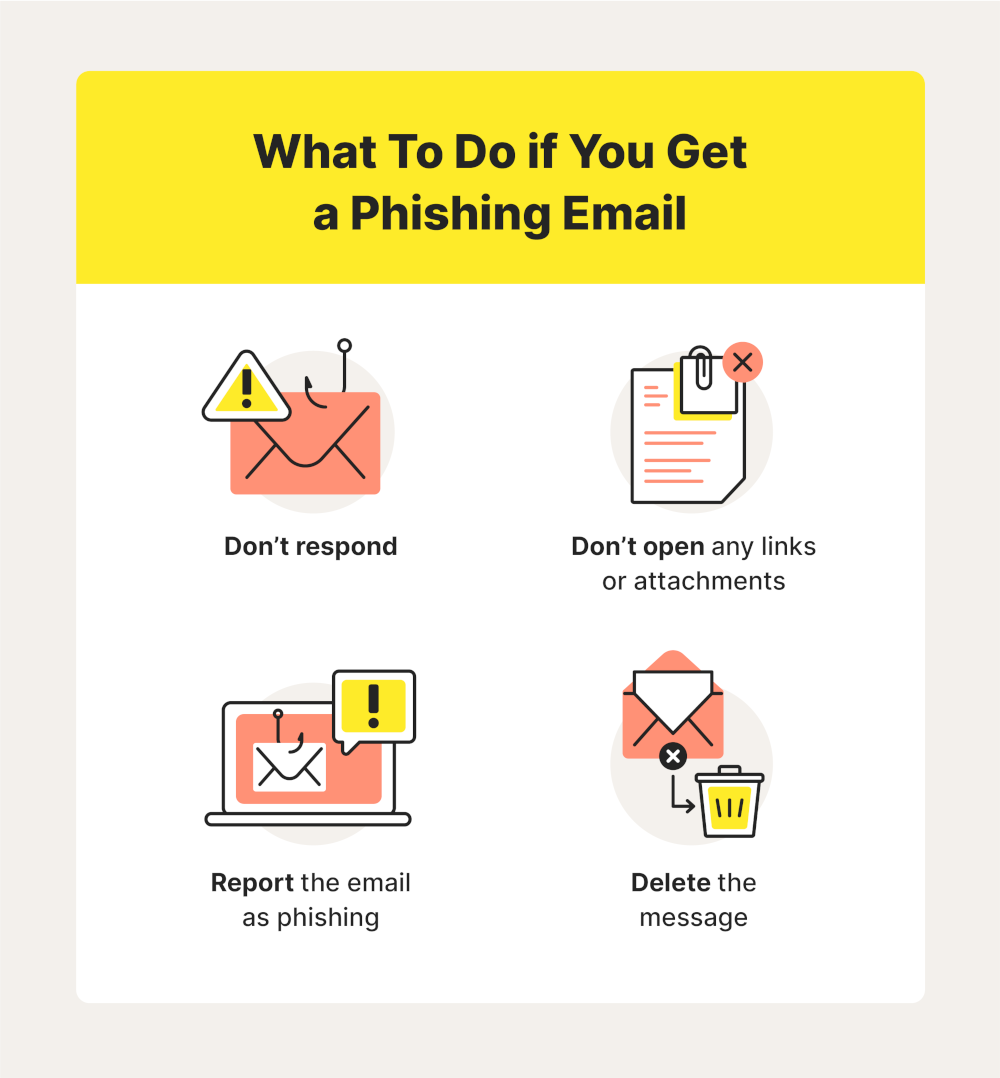
what-to-do-if-you-get-a-phishing-email How to Identify Malicious Emails and Protect Yourself Online: 9 Proven Strategies Every Business Owner Must Know

Immediate Actions

  • Do not click links or open attachments
  • Do not reply to the message
  • Mark the email as spam or phishing

Reporting and Recovery

If you accidentally interacted with a malicious email:

  • Change affected passwords immediately
  • Inform your IT team or service provider
  • Monitor accounts for unusual activity

For authoritative guidance, consult resources from organizations like the U.S. Cybersecurity and Infrastructure Security Agency (CISA) .


Frequently Asked Questions

1. How can I quickly tell if an email is malicious?

Check the sender address, look for urgent language, and avoid clicking unexpected links or attachments.

2. Are malicious emails only a problem for large companies?

No. Small and medium-sized businesses are frequent targets because they often have fewer security controls.

3. Can antivirus software stop malicious emails?

Antivirus helps, but it’s not enough on its own. Awareness and safe habits are equally important.

4. Is it safe to open email attachments from known contacts?

Not always. Known contacts can be compromised. Always verify unexpected attachments.

5. How often should employees receive security training?

At least once or twice a year, with additional updates when new threats emerge.

6. What’s the biggest mistake professionals make with email security?

Acting too quickly without verifying the request.


Conclusion

Learning how to identify malicious emails and protect yourself online is a critical responsibility for modern business owners and professionals. Cyber threats continue to evolve, but so can your defenses. By recognizing warning signs, verifying messages, and adopting strong security practices, you significantly reduce your risk of falling victim to online attacks.

Staying cautious, informed, and proactive is the best long-term strategy for protecting your business and professional reputation.


Contact DuLac Networks to learn more about how to protect your business online.

DuLac Networks presents Vade for M365

We are proud to now offer Vade for M365 as part of our service stack. Vade for M365 offers advanced protection against dynamic, email-borne cyberattacks targeting Microsoft 365, including phishing, malware/ransomware, and spear phishing (business email compromise). Vade for M365 offers a native Microsoft Outlook user experience and an added layer of protection over Microsoft’s built-in security layers, catching 10x more advanced email threats than Microsoft.

About Vade
• 1 billion mailboxes protected
• 100 billion emails analyzed / day
• 1,400+ partners
• 95% renewal rate
• 15 active international patents

Find out more about how Vade for M365 can help protect your organization.

Vade for M365 Overview

Vade for M365 Data Sheet